99.9% SLA
AI Image Text Remover: Text Erasure Review & Practical Guide
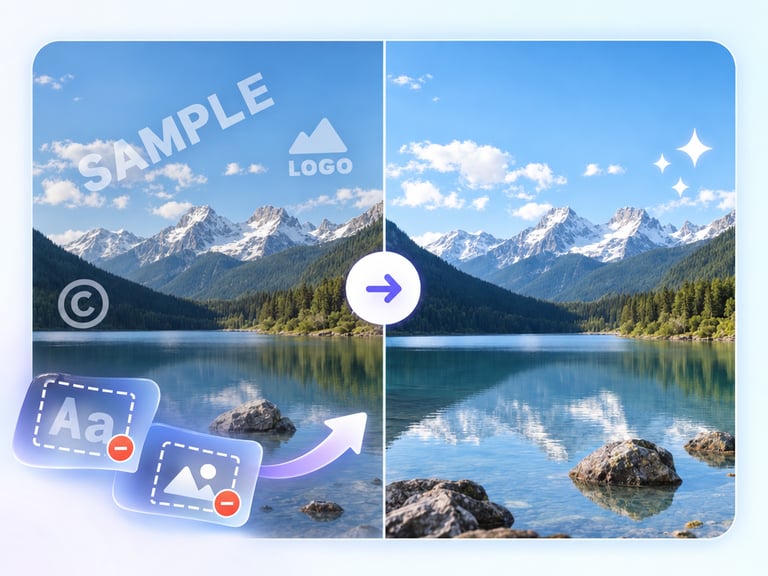
AI Image Text Remover erases on-image text - captions, labels, subtitles, watermarks, annotations, embedded UI text - and reconstructs what should be behind it. The reconstruction is the actual product: removing text is easy, making the image look like the text was never there is hard.
The model rebuilds texture, lighting, and scene structure behind the erased regions, which is the difference between a cleaned image and an image with holes in it. That inpainting quality is what makes the tool usable for real content workflows rather than quick fixes.
Quick Facts
| Attribute | Value |
|---|---|
| Tool name | AI Image Text Remover |
| Tool ID | image-text-remover |
| Category | AI image editing / cleanup |
| Primary task | Erase on-image text and reconstruct the background |
| Input | Image with text overlays |
| Output | Clean image without the text |
| API | REST inference, no cold starts |
| Best for | Screenshots, memes, e-commerce, stock cleanup, UI mockups |
Table of Contents
- First Impressions
- Core Features
- What to Watch For
- Core Advantages
- Best Use Cases
- Who Should Use It
- FAQ
1. First Impressions
The result is genuinely clean. Text regions come out with reconstructed texture that matches the surrounding image - gradients continue, patterns align, and lighting stays consistent. It handles the common cases - meme captions, screenshot labels, watermark strips - with impressive accuracy.
It is also fast enough for volume work. For teams cleaning up catalogs of screenshots or prepping images for republishing, the tool removes a tedious manual step.
2. Core Features
- Automatic text detection: finds and removes captions, labels, subtitles, watermarks, annotations, and UI text.
- Scene reconstruction: backgrounds are rebuilt with accurate texture, lighting, and structure.
- Wide coverage: works on image text across content types and placements.
- Quality preservation: surrounding areas are not degraded by the removal.
- REST inference API: no cold starts, suited to batch cleanup.
3. What to Watch For
- Complex backgrounds challenge reconstruction: busy textures behind text are harder to rebuild seamlessly.
- Large text blocks leave more to infer: the bigger the erased area, the more the model must invent.
- Rights first: removing watermarks from content you don't own is a legal matter, not a technical one.
- Check for ghosting: in patterned areas, verify no faint text remnants remain.
4. Core Advantages
- Clean reconstruction: results look untouched, not blurred-out or patched.
- One-pass workflow: no manual selection or clone-stamping.
- Scale-friendly: batch processing makes catalog cleanup practical.
- Versatile coverage: handles UI text, captions, and watermarks in one tool.
5. Best Use Cases
- Cleaning screenshots and UI mockups for documentation.
- Prepping meme and social content for rebranding.
- E-commerce image cleanup where overlays need removal.
- Recovering clean versions of stock or licensed images you own.
6. Who Should Use It
Pick it up if you work with images that carry unwanted text - documentation, social, e-commerce, or archives - and want clean reconstruction at speed.
Skip it if the text covers large, complex areas of every image, or you don't own the rights to the content you're altering.